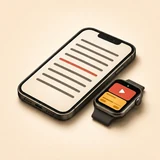
Built for Stage Spotlights: 3 Swipable Modes on Pure OLED Black
True OLED black (#000000) eliminates wrist glare on dim stages while Terracotta, Amber, and Emerald controls stay unmistakable at a glance.
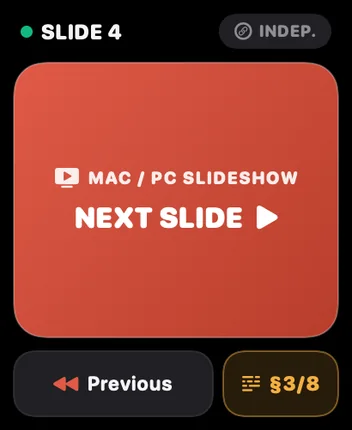 Mode 1 · Eyes-Free Stage
Giant Haptic Slide Clicker
A full-screen Terracotta 'Next Slide' target engineered to be tapped without ever looking down at your wrist while facing your audience, confirmed by crisp wrist haptics.
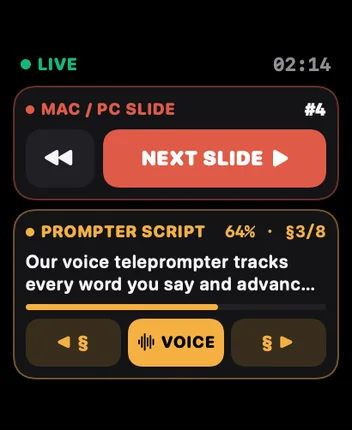 Mode 2 · Dual-Deck
Slides + Teleprompter Split
Independent top and bottom decks: advance or rewind Mac/Windows PC slides on top, and step through or pause your iPhone/iPad teleprompter paragraphs on the bottom.
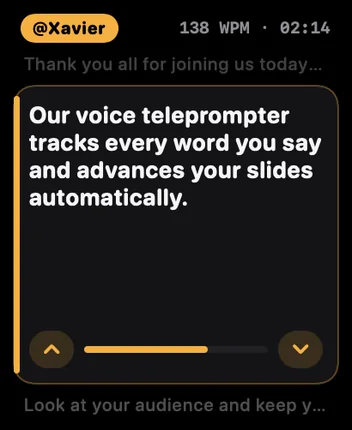 Mode 3 · Wrist Prompter
Live Cue & Digital Crown
Glance at your active paragraph right on your wrist as your iPhone tracks your voice, or rotate the Digital Crown for smooth line-by-line control.
Quick Setup Tip: Installing VoxPresenter on Your Apple Watch
If automatic watchOS app installation is turned off, open the Watch app on your iPhone, scroll to Available Apps at the bottom of the My Watch tab, and tap Install next to VoxPresenter.
Does the VoxPresenter Apple Watch remote work with PowerPoint on a Windows PC?
Yes. Unlike Apple's built-in Keynote Watch app (which only controls Keynote on Apple devices), VoxPresenter relays commands from your wrist through your iPhone to the free VoxPresenter Remote utility on both Windows PC and Mac—controlling PowerPoint, Keynote, Google Slides, Canva, and PDFs.
Can I advance slides without looking down at my Apple Watch?
Yes. Mode 1 renders an edge-to-edge Next Slide touch zone with directional watchOS haptic feedback so you feel every slide transition without breaking eye contact with your audience.